How to Connect GoHighLevel AI Studio to GitHub (and Why I Stopped Telling Clients to Use Vercel Alone)
To connect GoHighLevel AI Studio to GitHub, open your project, go to More > Git, select GitHub, and authorize the connection. AI Studio creates a private repository so saved changes and external commits can sync both ways. HighLevel setup guide

My old belief: build with AI, put it on GitHub, host it on Vercel
If you are a business owner, hiring a developer can feel expensive, especially when you see developers using AI to build websites themselves.
For a good chunk of this year, my advice was straightforward.
Use Claude Code or Codex to build your site. Keep the code in GitHub. Deploy it through Vercel. Move fast.
I am not a developer by profession. I wish I had learned GitHub sooner. Keeping my code somewhere, tracking changes, and working with other people opened up a lot for me.
I wanted to build fast, stay secure, and ship a real site or app without waiting on an expensive developer. Vibe coding made that feel possible overnight.
Vercel became my go-to for launching brand websites with modest traffic. Getting a page online felt like the finish line.
The moment my Vercel-alone advice broke down
The wall was everything that came after the page worked.
Where does the information go? Who can see it? What happens when someone creates an account? How does the business follow up?
A working screen does not answer those questions.
I started thinking about tools businesses could offer: a calculator, a useful assessment, or a client dashboard someone actually returns to.
Even a simple form can be a weak incentive. People have learned that handing over their email can mean receiving a flood of offers they never asked for.
People create accounts because they get value: understanding their situation, making a decision, or finishing a task. The signup has a reason behind it.
But databases, cybersecurity, privacy, and handling more users take work. For a solo entrepreneur or non-technical founder, those responsibilities add up.
I needed to think about the whole customer experience beyond getting an app online.
What I discovered: GoHighLevel AI Studio plus GitHub sync
When GoHighLevel launched AI Studio, I paid attention. I could describe what I wanted in a prompt and have it generate an app.
Early on, I did not love how limited the AI felt compared with the coding tools I was already using. I wanted more room to work on the actual application.
Then GHL GitHub sync changed everything.
It gave me a way to start inside GoHighLevel and keep working with external coding tools. HighLevel documents support for tools including Claude Code, Codex, and Cursor through the connected repository. HighLevel release overview
What is GoHighLevel AI Studio GitHub sync?
GitHub sync is a two-way code connection between an AI Studio project and its connected GitHub branch. GitHub holds the code and change history; AI Studio remains the place where I can review the application. Git Sync documentation
What caught my attention beyond that was the backend.
AI Studio Cloud is HighLevel's managed backend for an app's database, user authentication, and file storage. It gives me those capabilities within the project environment. AI Studio Cloud documentation
I still need to configure access correctly and test what I build. Managed infrastructure does not make every line of generated code secure. But it gives me a foundation to work from.
My new way: build a useful app, then connect the business
I now think about the tool and the follow-up together.
If I build an assessment, I want it to help the person completing it. Then I want the business to have a sensible next step: a conversation, an appointment, or a reminder that fits what the person requested.
Pipelines help me track where a lead is in the sales process. Workflows can handle the follow-up, nurturing, and reminders I configure. If I am building for a coach, that could include reminding a client about an upcoming session.
GitHub connects the development work. GHL gives me the business environment around it. I still have to build and verify the connection between them.
Code sync, app data storage, and CRM automation are separate parts of the setup. Connecting GitHub does not automatically create a contact, move an opportunity, or send a follow-up.
Here is the sequence, with photos from my walkthrough.
How to connect GoHighLevel AI Studio to GitHub: step by step
These screenshots come from my video walkthrough, around 6:40–7:00. Click a photo to inspect the controls.
1. Open AI Studio and start your project
Open the intended HighLevel sub-account, enter AI Studio, and create or select your project.
Start with one clear job. For example: “Build a client dashboard where users can sign in and view their own assessment results.”
Decide who should own the client project. In the video, my prompt is: “Build an admin dashboard with sidebar navigation, charts, and data tables.”
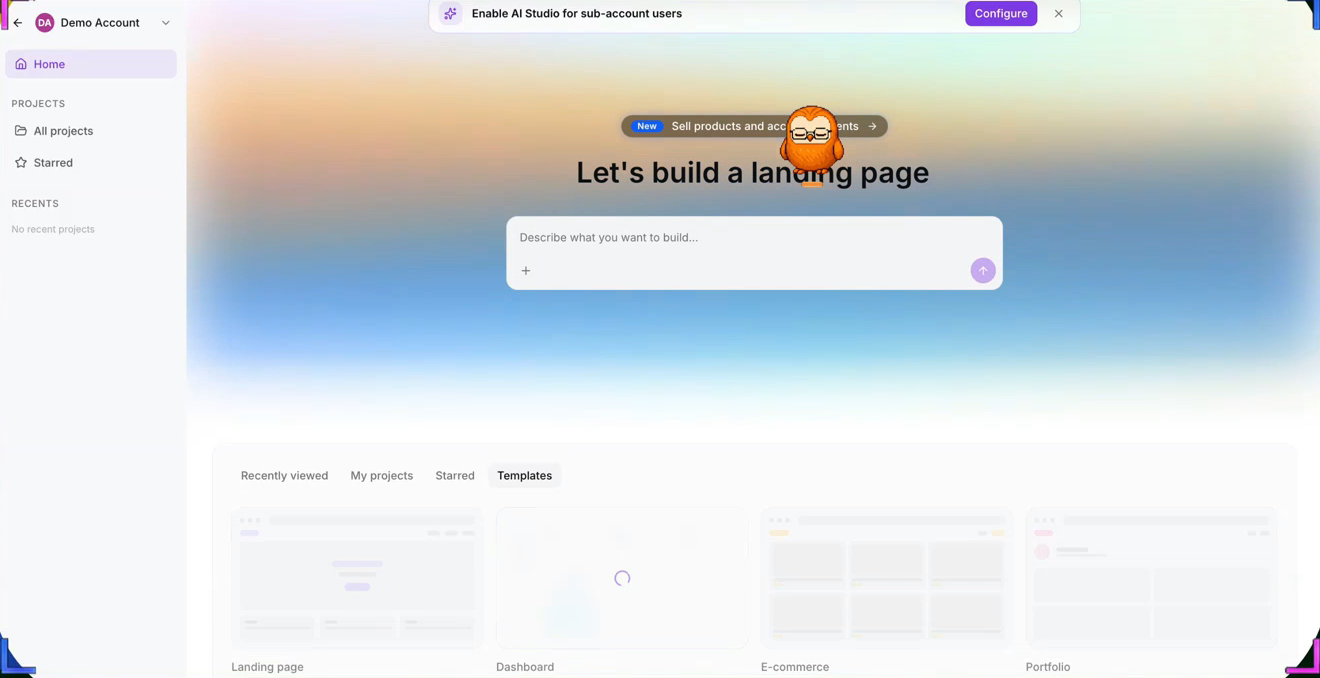
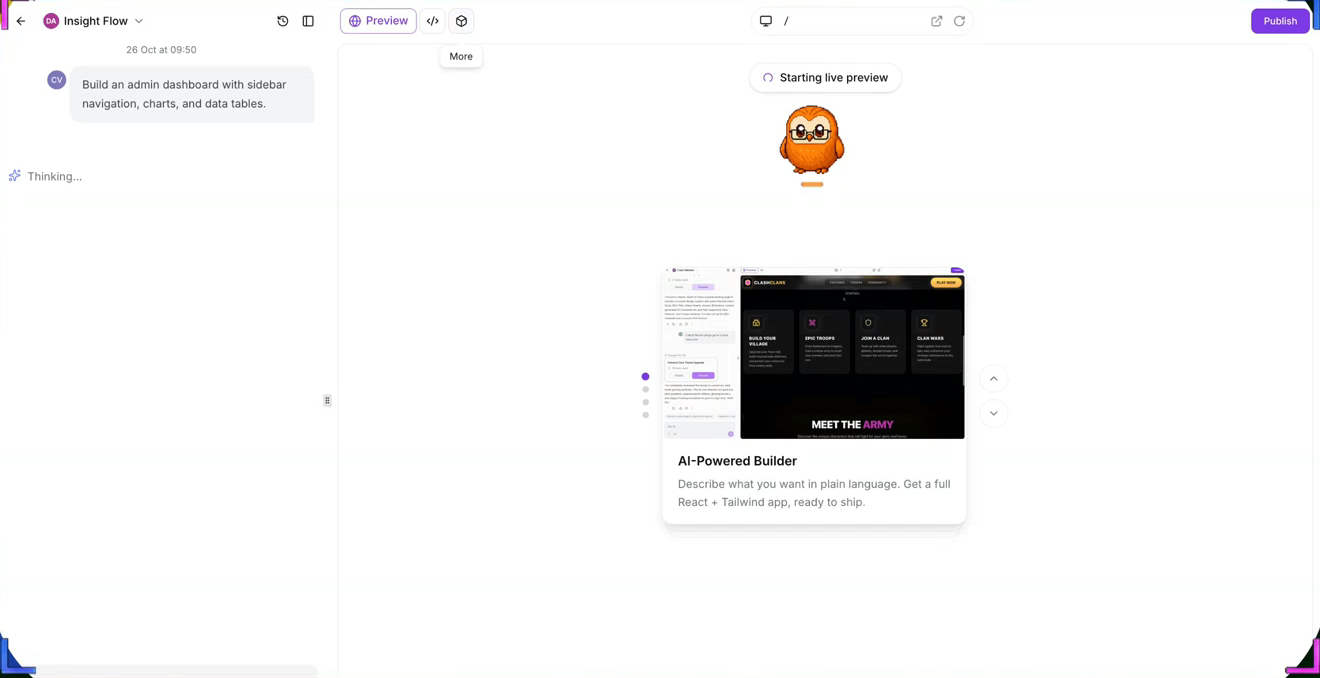
2. Check your Git permissions
If Git is missing, check Settings > Team > Permissions > AI Studio for Manage Git & download code. Ask the account administrator to review access if needed.
3. Connect your GitHub account
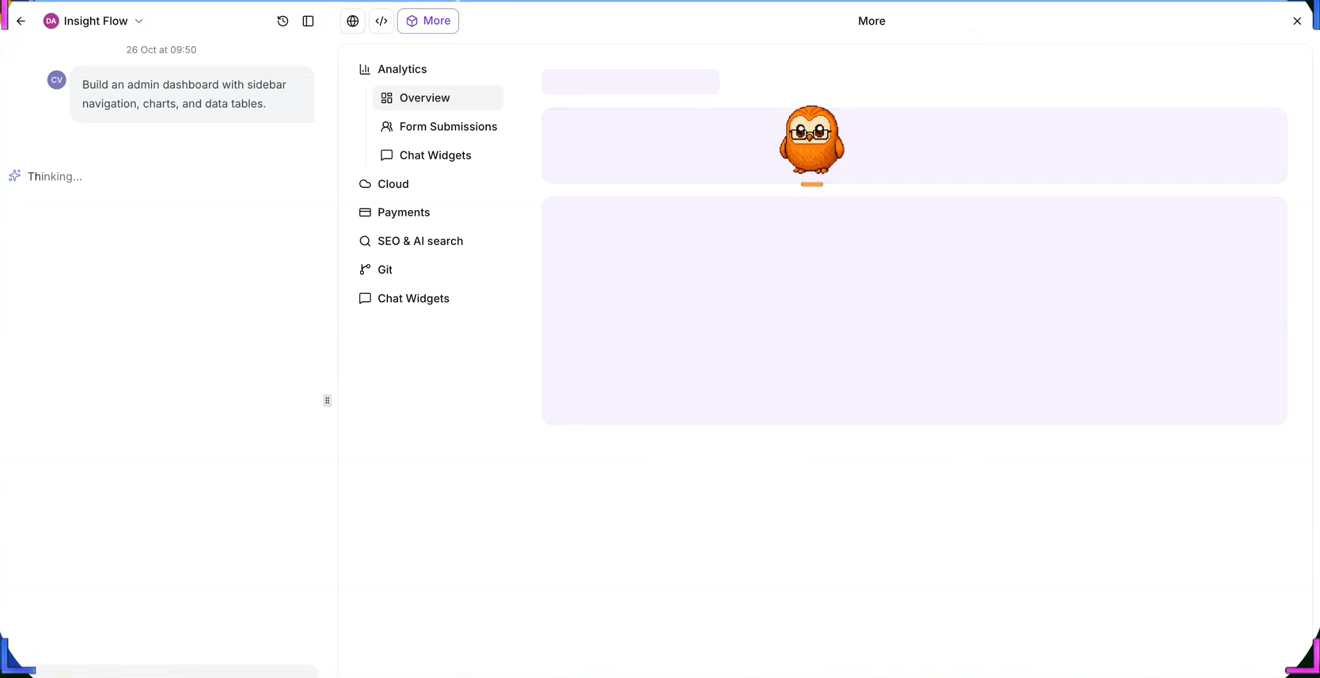
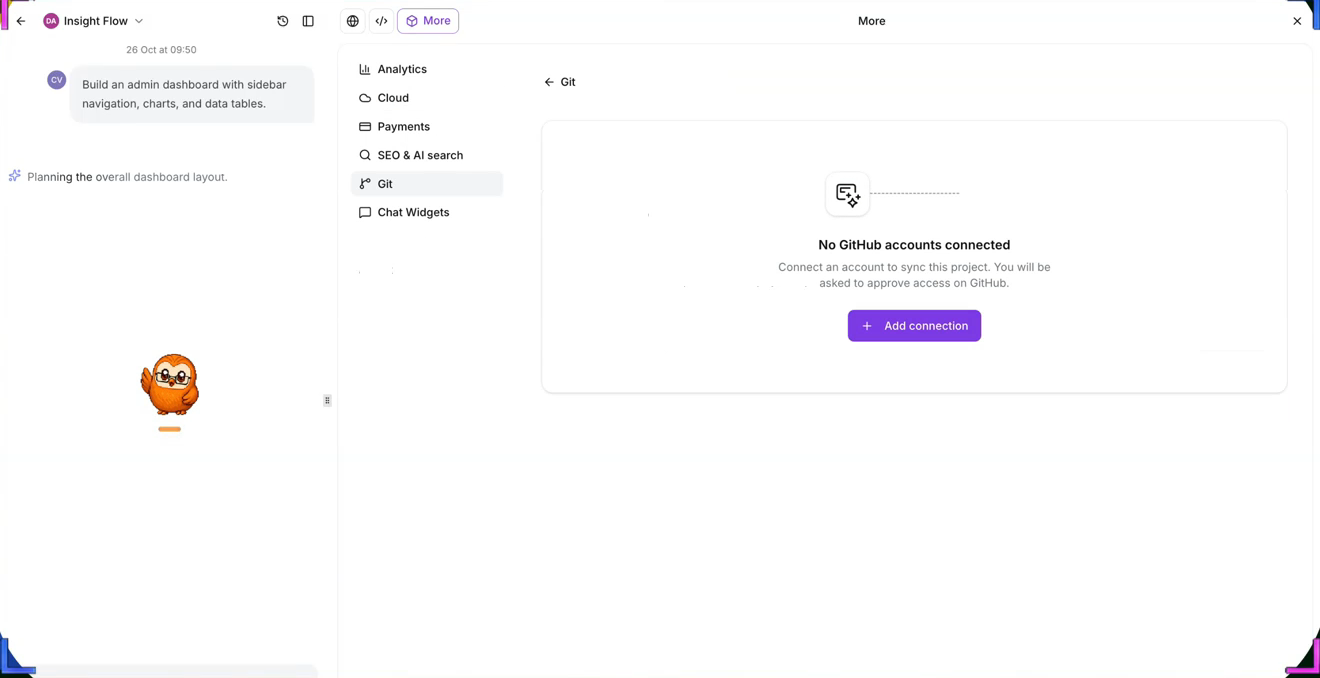
Inside the project, open More, then Git.
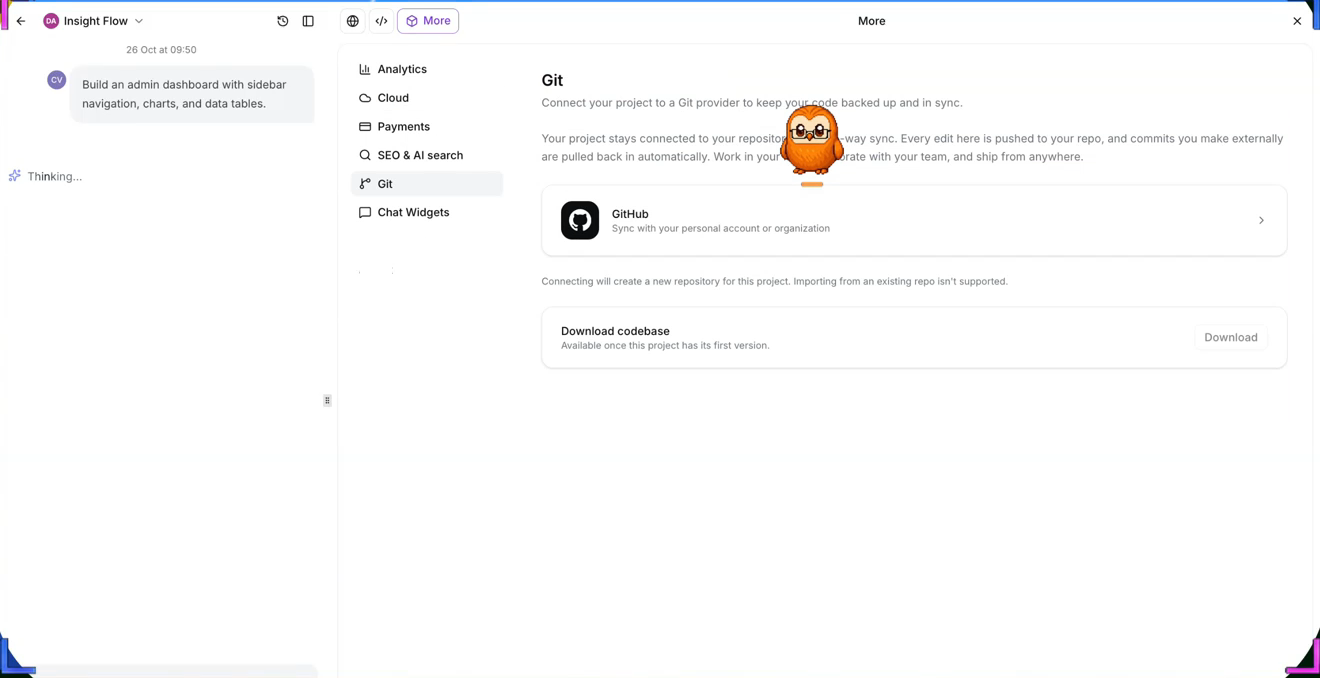
Choose + Add connection, or Connect for a listed account.
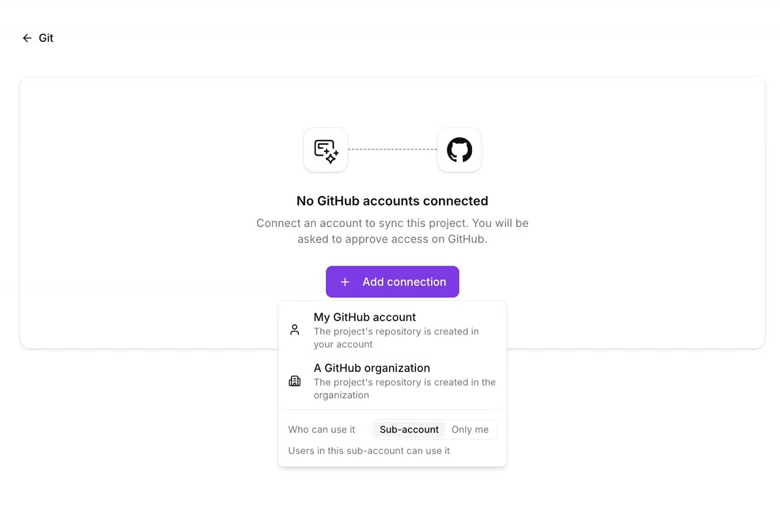
Select your personal account or organization, then choose Only me or Sub-account.
Continue on GitHub and authorize Lead Connector. An organization may require administrator approval.
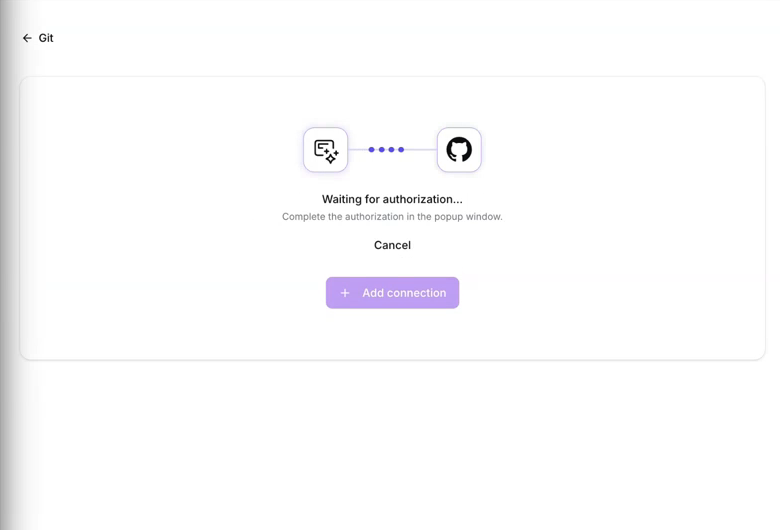
The recording reaches this authorization screen. The remaining steps below explain what to confirm afterward, using HighLevel’s documentation.
4. Confirm the repository and synchronization
Return to AI Studio. It creates a private repository, pushes the initial version, and connects to main. Check that Automatic Push and Automatic Pull are enabled. Official connection instructions
5. Make one change with your coding tool
Open that repository in Claude Code, Codex, or Cursor. Begin with a small change that is easy to recognize, such as improving a button label.
Review it, commit it, and push it to the connected branch.
Only the connected branch syncs. Check Sync History, then open the refreshed preview when its build is ready. Manual Push now and Pull now controls are also available. If the branches diverge, New branch preserves both versions; Force push makes AI Studio's version authoritative. HighLevel Git sync changelog
6. Enable Cloud if your app needs it
For saved results, accounts, or uploads, open More > Cloud > Overview > Enable Cloud.
Cloud requires TanStack Start. An existing React project needs Project Settings > Migrate to SSR first. Migration creates an upgraded copy, and Cloud must then be enabled separately.
Review authentication and database access rules. Test that one user cannot read another user's private records. Cloud setup and access controls
7. Connect the CRM flow, test, and publish
Decide which app actions should reach the GHL CRM and configure the appropriate integration and workflow.
Cloud records and CRM form submissions are separate destinations. A CRM-connected AI Studio form does not automatically store its submissions in Cloud. HighLevel's Cloud FAQ
Run through the complete experience with test data. Check the result, saved information, CRM record, and intended follow-up. Review the mobile experience too.
Then publish deliberately. A synchronized repository or working preview is one checkpoint; the live customer journey is the finish line.
Key takeaways
- Start with a useful customer outcome.
- Use GitHub sync to move code between AI Studio and external coding tools.
- Configure Cloud, permissions, and CRM connections separately.
- Test the whole journey before calling the app ready.
FAQ: GoHighLevel AI Studio and GitHub
Can I connect GoHighLevel AI Studio directly to GitHub?
Yes. Open More > Git, select GitHub, and authorize the connection. AI Studio creates a private repository.
Can I edit the project with Claude Code, Codex, or Cursor?
Yes. Edit the connected repository, then commit and push changes to the branch AI Studio is syncing.
Do I still need Vercel?
For this workflow, I can use AI Studio as the hosting environment. My preference depends on the app and the business connections it needs.
Is GoHighLevel AI Studio secure?
HighLevel provides managed backend capabilities and access controls. I still need to configure permissions, review generated code, and test private-data access.
Does GitHub sync automatically connect GHL workflows?
No. GitHub sync moves code. I configure and test CRM integrations, workflow triggers, and follow-up separately.
Build something your customers have a reason to use
I still want to build fast, with a result that works for the customer and the business.
You are no longer stuck giving away a PDF. Start with one problem your ideal customer needs to solve, build a useful tool, and connect the next step.
Sign up for GoHighLevel through my affiliate link.
You will also get access to my community, where you can learn more about building useful tools and connecting them to your business.
Affiliate disclosure: I am a GoHighLevel affiliate. If you sign up through my link, I may earn a commission at no extra cost to you.